
Parental Control lets parents control the features their child can access, such as making in-app purchases and using the team chat.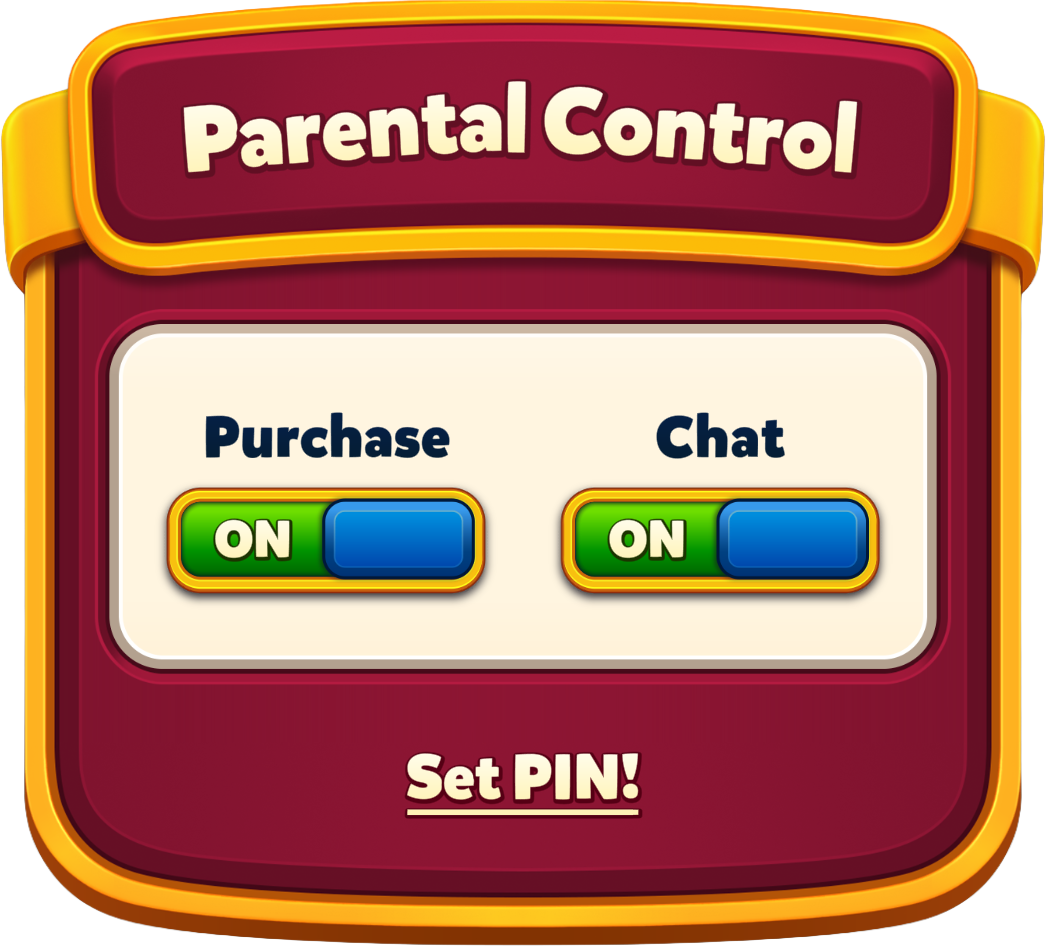
How can I activate Parental Control?
- To activate the Parental Control feature, you must provide a valid email address and verify it.
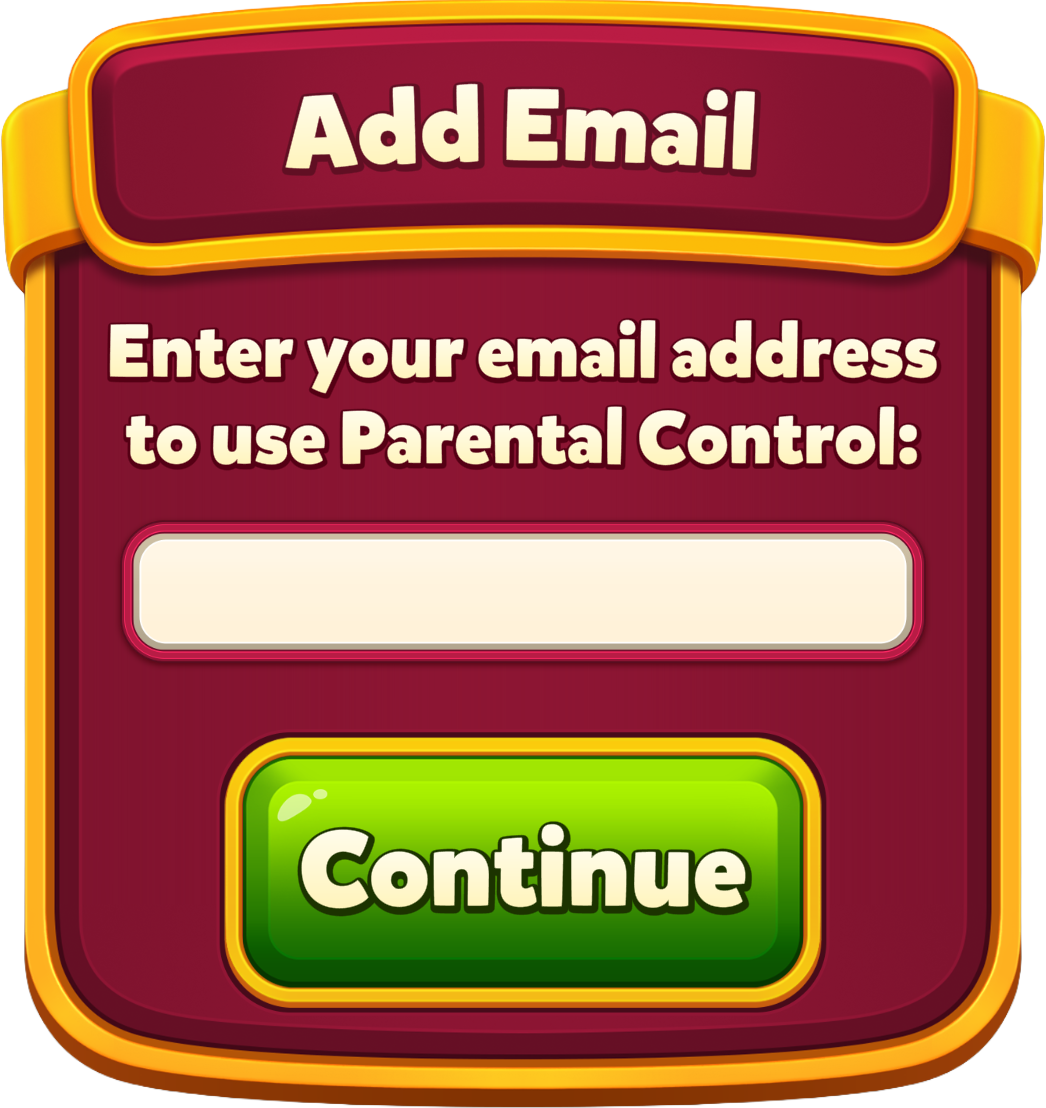
- To verify your email address, enter your email address and enter the code sent to your email address.
- If you haven't received an email in your inbox, please check the "Spam"/"Junk" folder.
- You can resend the code after waiting for 1 minute.
- After verification, you will be asked to create a PIN to use the feature.
- After creating the PIN, you will need to enter it each time you want to change Parental Control settings.
Using Parental Control
- When the Chat feature is disabled through Parental Control, the messages sent to team chat will not be visible.
- The "Chat" button will be disabled, and a "Your chat is disabled" message will appear when the button is tapped.
- When the Purchase feature is disabled in Parental Control, a correct PIN will be required for every purchase.
How can I change my PIN?
- Go to "Settings" in the game
- Tap the "Parental Control" button
- Enter your PIN
- Tap "Change PIN!"
How can I reset my PIN?
- Tap "Forgot my PIN" in any "Enter PIN" screens.
- Tap the "Send" button to send an email to the previously verified email address.
- To give you a hint, the first letter and the domain name will be visible in the email address.
- Enter the code sent to your email address.
- Create your new PIN.